Read Your Overview
The Overview page is the first page you see in the SpamFoo Dashboard. It sums up how SpamFoo handled the mail sent to your mailbox.
Open the Overview
- Open the SpamFoo Dashboard. See Open Your Dashboard.
- In the left menu, go to My Email > Overview.
The page title is My Email, with your email address under it. Everything on the page covers only your own mailbox.
Choose a Time Range
Use the menu in the top right to pick Last 7 Days, Last 30 Days, or Last 90 Days. The tiles, the chart, and the Classifications card all follow your choice. The dashboard remembers it the next time you open the page in the same browser.
Summary Tiles
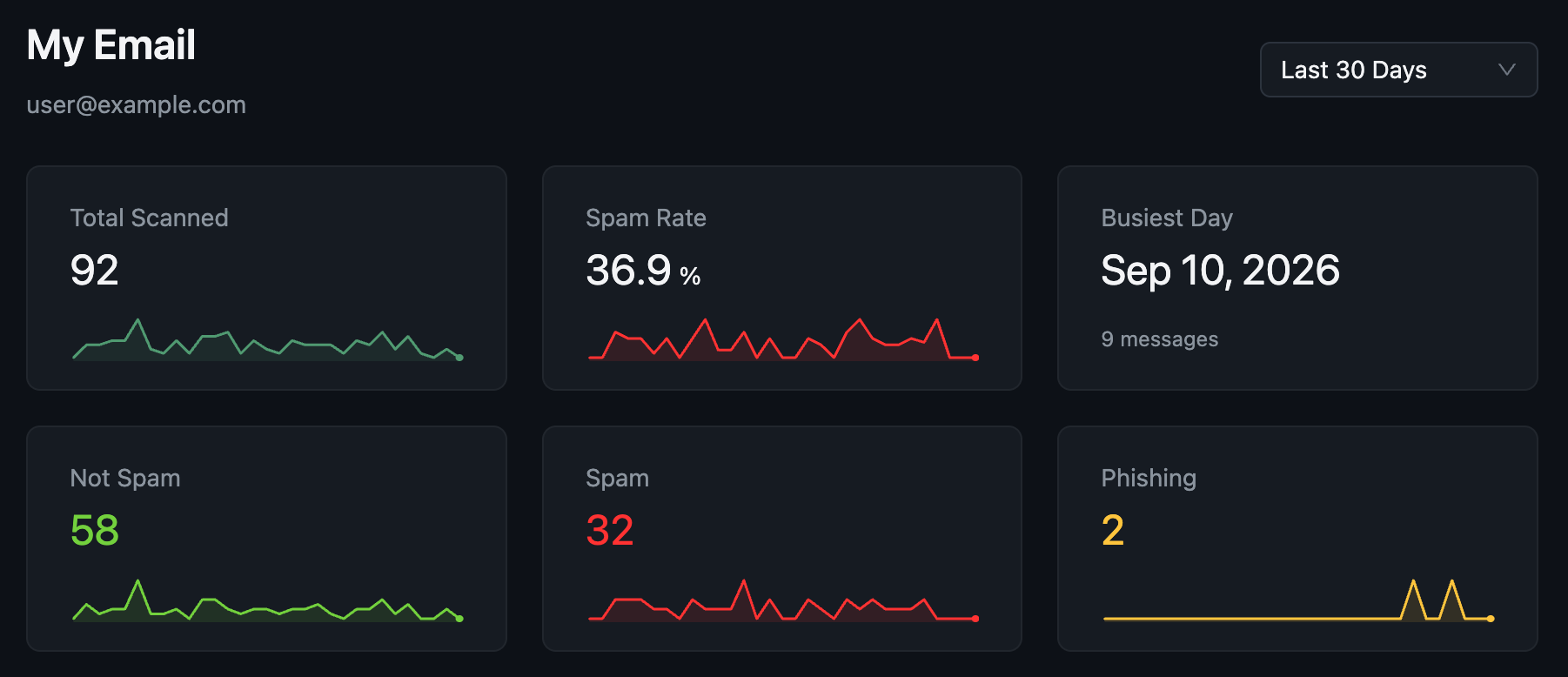
The row of tiles at the top shows totals for the time range. Most tiles have a small line under the number that shows the daily values.
| Tile | What It Shows |
|---|---|
| Total Scanned | How many messages SpamFoo checked for your mailbox. |
| Caught Rate | The share of your mail that SpamFoo caught as spam or phishing. |
| Busiest Day | The day you got the most mail, and how many messages arrived that day. |
| Not Spam | Messages SpamFoo let through as normal mail. |
| Spam | Messages SpamFoo marked as spam. |
| Phishing | Messages SpamFoo marked as phishing. Phishing is a fake message that tries to trick you into giving up a password, money, or personal details. |
Mail Trend
The Mail Trend chart shows your Not Spam, Spam, and Phishing mail for each day in the time range. Use it to spot days when spam suddenly went up.
Classifications
The Classifications card shows how SpamFoo sorted the mail that wasn't spam. Each row shows a classification, how many messages it got, and its share of your non-spam mail.
- Primary, Updates, Transactions, and Promotions are the four Email Classifications. See The Four Email Classifications.
- Not classified counts non-spam mail that didn't get a classification.
Recent Messages
The Recent Messages card lists your newest messages. Each row shows:
- Sender: the sender's domain, with the date and time under it.
- Detection Type: Not Spam, Spam, or Phishing.
- Classification: the Email Classification. Spam and phishing show a dash instead.
To work with a message:
- Click a message to open its details. See Review Your Messages.
- Right-click a message (or press and hold on a touch screen) to open its details, create a rule for the sender, or report a wrong result. See Correct a Wrong Result.
- Click View all to open My Messages with all of your messages.