Manage a Domain
If you're a domain admin, the SpamFoo Dashboard has a Domain Admin menu for your domain. Use it to watch your domain's mail, set spam rules for everyone in the domain, and protect your people from impersonation.
Before You Start
- Open the SpamFoo Dashboard. See Open Your Dashboard. The top right corner shows Domain Admin with your domain name under it.
- The Domain Admin menu covers only your own domain.
- Your own mailbox is still under My Email. See Read Your Overview.
- You can't read other people's messages. You can see how much mail each mailbox gets, but not the messages themselves.
Domain Overview
Go to Domain Admin > Domain Overview. The page title is your domain name. It sums up mail for every mailbox in the domain.
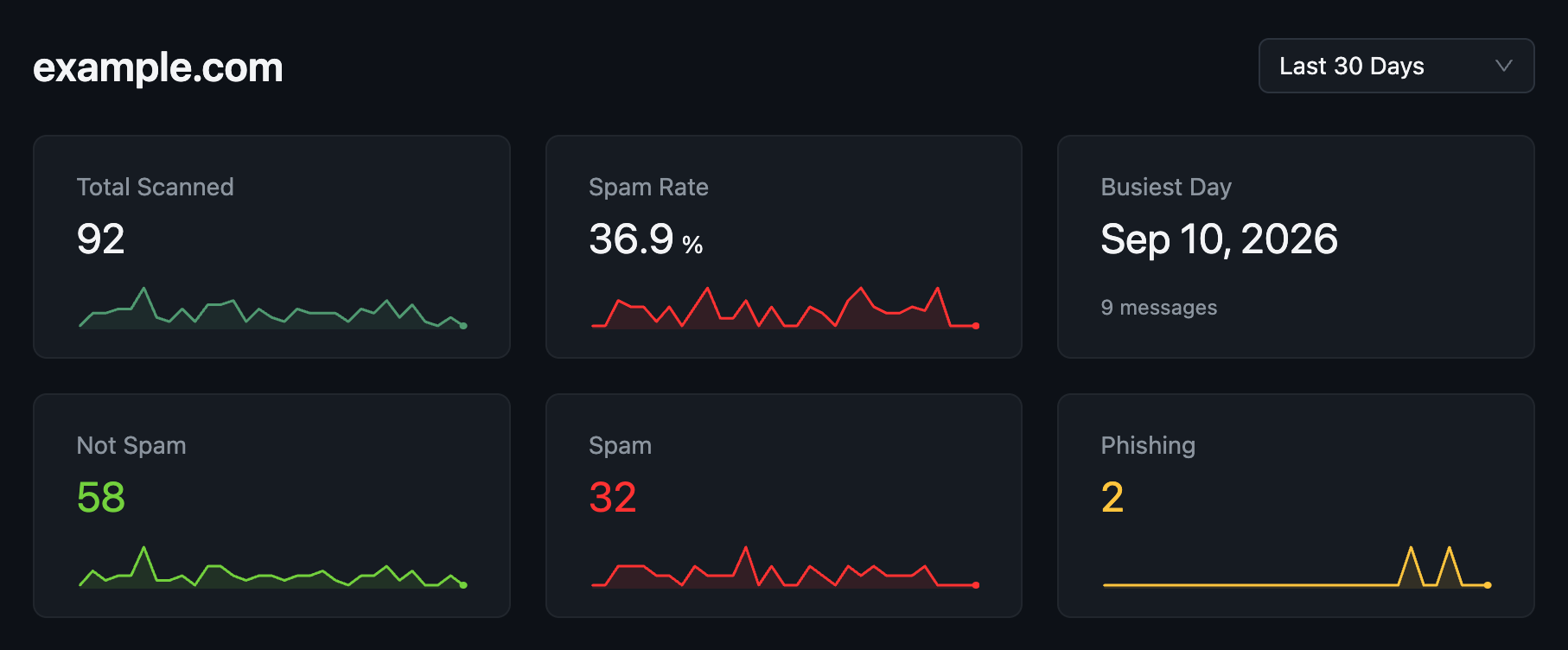
- Use the menu in the top right to pick Last 7 Days, Last 30 Days, or Last 90 Days.
- The tiles show Total Scanned, Caught Rate, Busiest Day, Not Spam, Spam, and Phishing for the whole domain.
- Mail Trend charts Not Spam, Spam, and Phishing for each day.
- Classifications shows how the domain's non-spam mail was sorted into Primary, Updates, Transactions, and Promotions, plus any that was Not classified.
These work the same way as on your own Overview page. See Read Your Overview for what each one means.
Mailboxes
Go to Domain Admin > Mailboxes. The list shows each mailbox in your domain that got mail in the time range you pick in the top right.
| Column | What It Shows |
|---|---|
| Mailbox | The mailbox's email address. |
| Scanned | How many messages SpamFoo checked for that mailbox. The busiest mailboxes come first. |
| Spam | How many were spam. |
| Phishing | How many were phishing. |
| Caught Rate | The share of that mailbox's mail that was spam or phishing, with a bar showing spam in red and phishing in gold. |
Use the search box to find a mailbox by address. Click a column heading to sort by it. A mailbox with a high caught rate may be a good reason to add a domain rule, or to tell that person how to mark spam. See Correct a Wrong Result.
Domain Spam Rules
Go to Domain Admin > Rules. A domain spam rule always marks mail from a sender as Spam or Not Spam for everyone in your domain.
- A rule can match an email address, a domain, or an IP address or range. An IP range uses CIDR notation, which is an address followed by a slash and the size of the network, such as
10.0.0.0/24. - Use
*as a wildcard, such as*@example.comor*.example.com. - Your domain rules win over any rule your users create for the same sender.
- Rules your system administrator sets for the whole server win over yours. They appear in the same list with System under Set By, and you can't change them.
- Your users see your rules on their My Rules page with Domain under Set By, but they can't change them.
Add a Domain Spam Rule
- In the Spam Rules list, click Add Rule.
- In Email, Domain, or IP Range, enter the sender.
- To cover subdomains too, turn on Include subdomains.
- Under Action, choose Spam or Not Spam.
- Optionally, add a Note.
- Click Create.
You can only change rules with Domain under Set By. To change a rule, click it, edit it, and click Save. To pause a rule, use its Enabled switch. To remove one, right-click it and choose Delete. The Match By column shows whether each rule matches an Email, a Domain, a Wildcard, or a CIDR (IP range).
For a deeper look at rules for administrators, see Manage Spam Rules and Senders.
Anti-Phishing
Go to Domain Admin > Anti-Phishing. The Protected identities tab lists the people attackers are likely to pretend to be, such as your owner, your finance staff, or your HR staff. If a message shows one of these names but doesn't come from an approved sender, SpamFoo treats it as phishing. Protected identities need a SpamFoo Anti-Phishing license. Without it, you can see your identities but not change them, and they aren't checked.
- Add Identity adds one person. Enter the Display Name as it appears in their email and the senders allowed to use it. If the person also sends from another address, such as a personal Gmail account, add that address too.
- Import vCards adds many people at once from contact cards (
.vcffiles, or a.zipof them). - Strict Mode controls what counts as an approved sender. When it's on, only exact email addresses count. When it's off, you can also approve whole domains.
- Delegated Senders for Every Identity approves a sender for all of your protected identities at once. Use it for your own domain, a shared assistant, or a service that puts real names in its notifications.
For step-by-step help, see Protect Against Phishing.